On this page
- Where is the pop-up coming from?
- How do you remove a popup from a Wix site?
- How do you edit a Wix popup?
- How do you hide a popup on mobile only?
- How do you turn off a pop-up from an app?
- How do you turn off the cart pop-up in Wix Stores?
- How do you remove Wix Chat?
- How do you remove a Wix banner?
- How do you remove a pop-up added with custom code?
- Frequently asked questions
- Try it on your store
- Sources
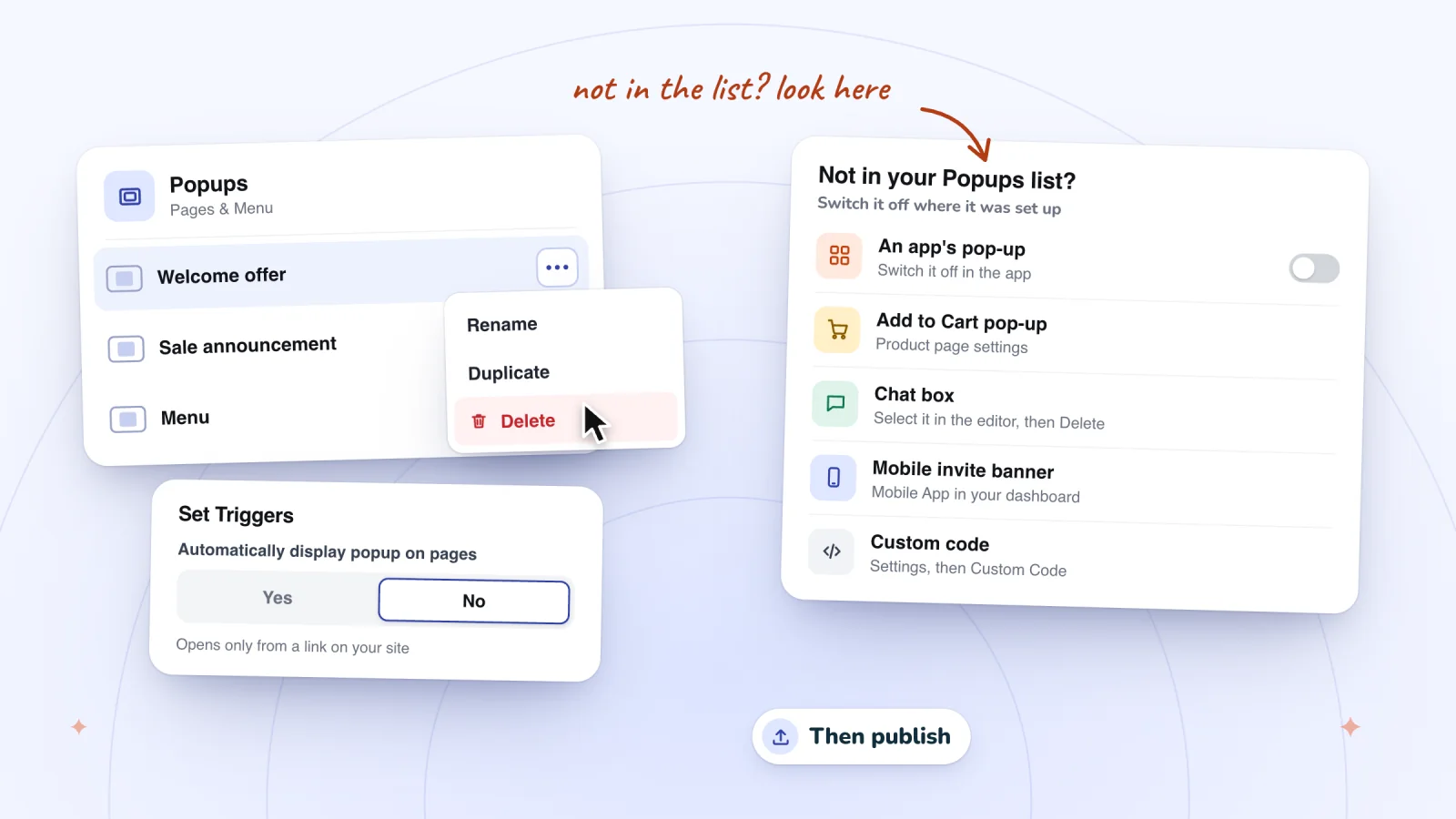
To remove a popup you made in Wix, open Pages & Menu, then Popups, click the popup's More Actions icon, choose Delete and publish. To keep it but stop it opening by itself, open Set Triggers and choose No under "Automatically display popup on pages." A pop-up that isn't in your Popups list comes from somewhere else: an app, a Wix Stores or chat setting, a Wix banner or custom code.
Wix used to call popups lightboxes, a name its developer tools still use, so the same steps work for either name. Each kind of pop-up is switched off in a different place, so start by working out which kind you're looking at.
Key takeaways
- To remove a built-in Wix popup, delete it from the Popups list and publish; to keep it, choose No under "Automatically display popup on pages" in Set Triggers instead.
- A pop-up that isn't in your Popups list comes from somewhere else, such as an app, the Add to Cart setting, Wix Chat, a Wix banner or custom code, and each is switched off where it was set up.
- Wix Editor popups stay hidden on phones until someone switches them on in the mobile editor, while Wix Chat can't be removed from your mobile site alone.
- In Spin Wheel, switching a pop-up off on the Pop-ups page keeps it saved, and it doesn't switch off the store coupons behind its prizes.
Where is the pop-up coming from?
Look in your Popups list first, since every built-in popup on your site is there, whoever added it. In the Wix Editor, click Pages & Menu, then Popups. In Wix Studio, click Pages and look under Popups. If yours isn't listed, what it shows and where it appears point to its source:
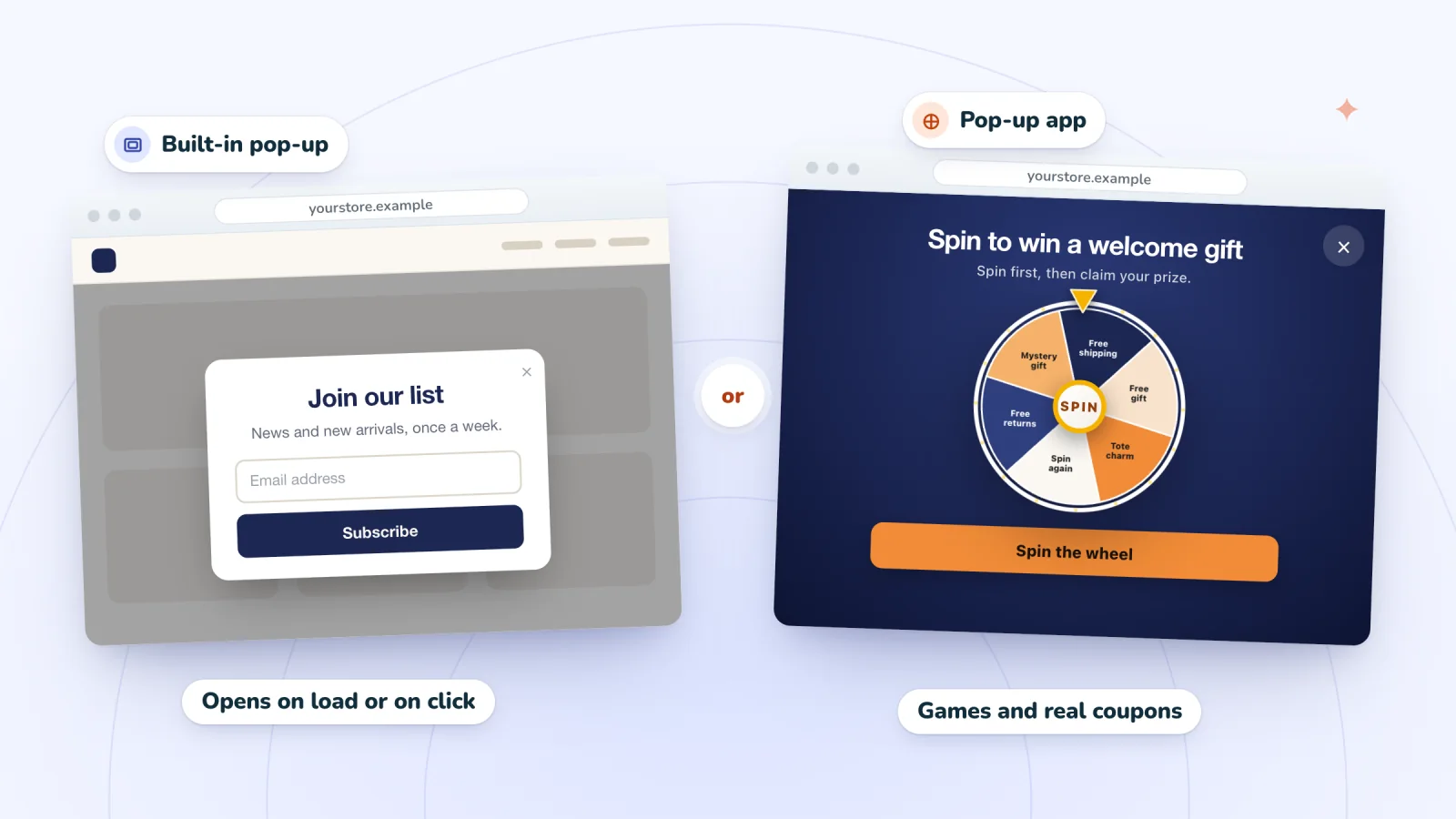
- It's in the Popups list. It's a built-in popup, which you can delete or stop opening automatically.
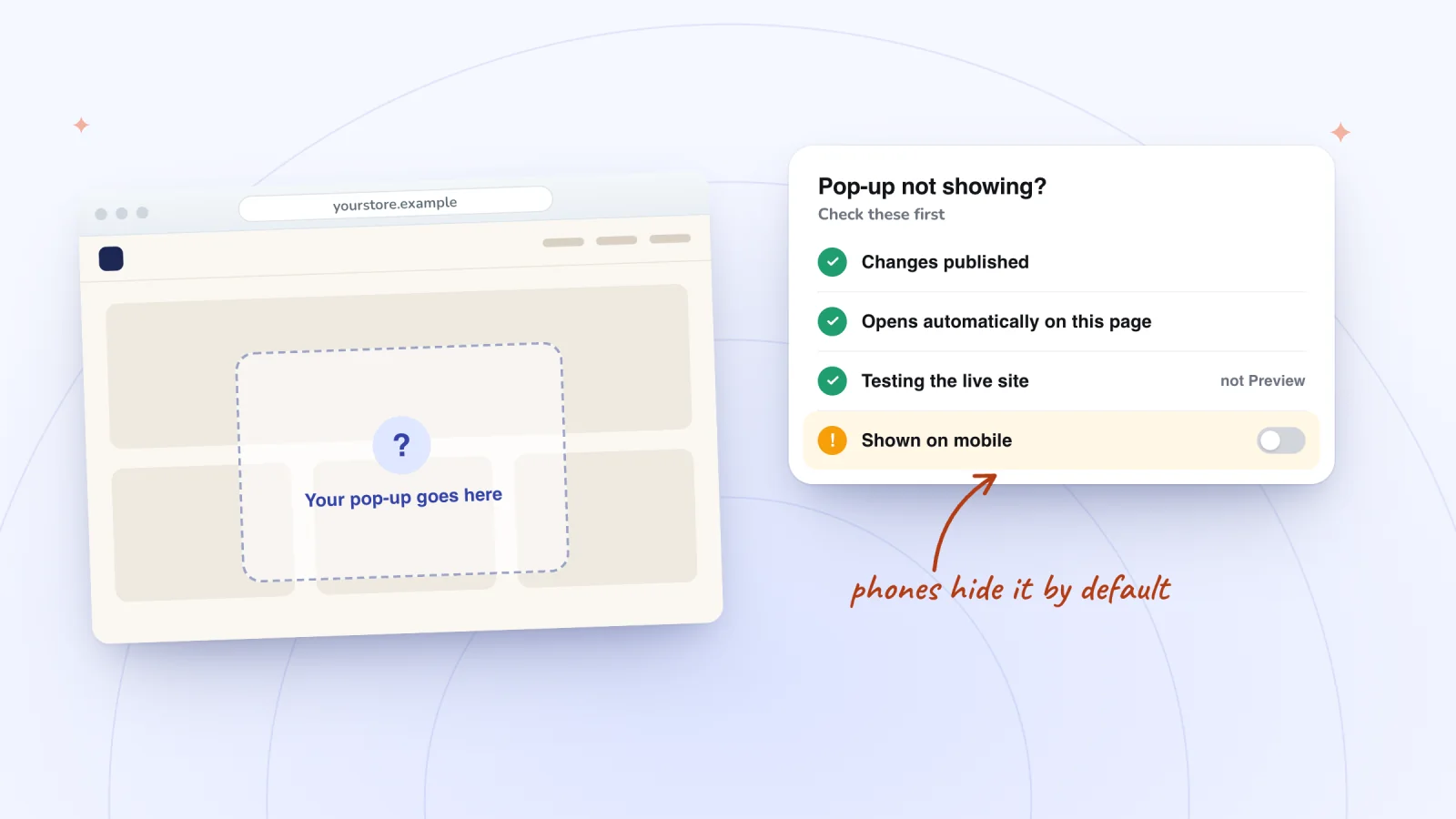
- It shows only on phones. It may be a popup switched on in the mobile editor, a Welcome screen or the mobile invite banner. Here's how to hide it on mobile.
- It's a game, an offer or a sign-up form you didn't build in the editor. It probably comes from an app, and you switch it off in the app.
- It opens after Add to Cart, or from a Quick View button. That's a Wix Stores setting, and you can change what the cart does.
- It's a chat box in a corner. It may be Wix Chat, which Wix says often comes with site templates, so it can be on your site without you realizing. See how to delete the chat.
- It's about cookies, a Wix ad, or an invitation to join you on an app. It's probably one of Wix's banners, and each one comes off differently.
- None of these. Look for custom code or site code that opens it.
How do you remove a popup from a Wix site?
Delete it from your Popups list, then publish. If you might want it back, stop it opening automatically instead: it stays in the list, and a button linked to it still opens it. Either way, nothing changes on your live site until you publish, since Wix notes that clicking Save won't make your changes live.
- Delete it. It's gone from the editor, and from the live site once you publish.
- Turn it off. Choose No under "Automatically display popup on pages." Wix says the popup then doesn't appear when a visitor enters a page, though you can still link to it from elements on your site.
Check what a popup does before you delete it. Not every popup is an offer: Wix's own tutorial builds a full-screen menu from a popup that opens from a Menu button.
Delete a popup in the Wix Editor
- Click Pages & Menu on the left side of the editor, then click Popups.
- Click the popup you want to remove.
- Click its More Actions icon, then click Delete.
- Click Publish at the top right of the editor.
Stop it opening automatically
- Click Pages & Menu, then Popups, and select the popup.
- Click the popup on the canvas, then click Set Triggers.
- Under "Automatically display popup on pages," choose No.
- Publish your site.
In Wix Studio or Wix Harmony
- Wix Studio. Click Pages on the left, click the More Actions icon next to the popup and click Delete, then Delete again to confirm. Wix notes this removes it completely from the site. To keep it instead, select it under Popups, click it on the canvas, click Set Triggers and choose No. Studio saves every change as you go, but your live site only updates when you publish.
- Wix Harmony. Click the Page dropdown at the top left, hover over the popup in the Site Pages panel and click its More Actions icon. Then click Delete, and Delete again to confirm.
How do you edit a Wix popup?
Open it from the Popups list and click it on the canvas: in the Wix Editor, that's Pages & Menu, then Popups; in Wix Studio, Pages, then the popup under Popups. Click any element to change it, or click Set Triggers to change when it opens. Then publish.
The More Actions icon next to a popup in the same list also renames or duplicates it. For the rest of the setup, from forms and delays to close buttons and schedules, see how to add a popup to a Wix site.
How do you hide a popup on mobile only?
In the Wix Editor, open the mobile editor, click Menus & Pages, then Popups, and select the popup. Click the Settings icon, choose No under "Automatically display popup on pages" and publish. The Wix Editor hides desktop popups on your mobile site by default, so a Wix Editor popup that opens by itself on phones was switched on in the mobile editor.
Something else that shows only on phones? Check these:
- Part of a popup. In the mobile editor, click an element of the popup, such as its X icon or Close button, to hide it from your mobile site only.
- A screen while the page loads. That's a Welcome screen, which Wix shows mobile visitors while your site loads. In the mobile editor, click Mobile Tools, click the More actions icon next to Welcome screen and click Remove.
- A banner inviting visitors to an app. That's the mobile invite banner, covered with the other Wix banners below.
- Wix Chat. Wix adds it to your mobile site's Quick Action Bar, and it can't be removed from mobile alone.
- An app's pop-up. Look for a device setting in the app. In Spin Wheel, open the pop-up and, in When & who under Who sees it, set Devices to Desktop. It then skips browser windows narrower than 768 pixels, which takes in phones held upright.
If a popup won't show on phones when you want it to, that's the opposite problem, and these fixes for a popup that isn't showing on mobile cover it.
Pop-ups that show up at the right moment
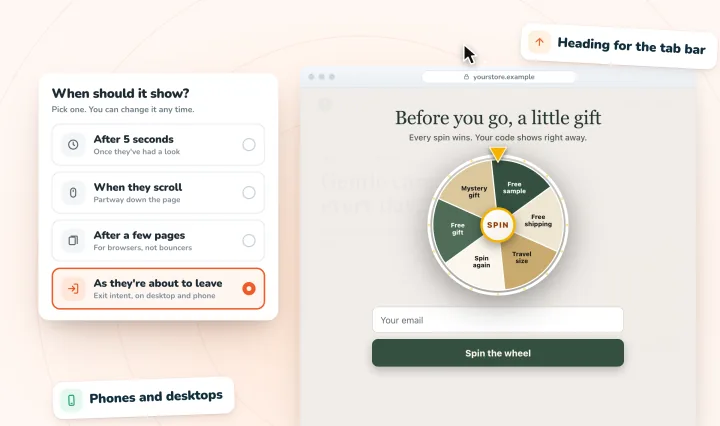
Delay, scroll, page-count and exit-intent triggers on desktop and phone, and one pop-up per page load, so they never stack.
How do you turn off a pop-up from an app?
Switch it off, or delete it, in the app that shows it. An app's pop-up usually isn't in your Popups list, because the app manages it, so open the app from your site's dashboard and look for a switch that turns it off, or a delete option. To stop all of an app's pop-ups at once, delete the app itself.
- Not sure which app? Your dashboard's Manage Apps page lists the apps on your site.
- Deleting the app. Go to Manage Apps in your dashboard, click the More Actions icon next to the app, click Delete, choose a reason and click Delete App. An app you placed on a page goes like any element: select it in the editor, press Delete and publish.
- Its subscription. Wix says deleting an app doesn't cancel its subscription, so cancel that first to avoid further charges.
- Help from the developer. Wix Customer Care can only assist with apps made by Wix, but every third-party app on the Wix App Market lists a phone number, website or email under App developed by.
Turning off a Spin Wheel pop-up
Open Spin Wheel from your Wix dashboard and go to Pop-ups. Each pop-up's card has a switch next to its name: switch it off and the card's badge changes from Active to Inactive. Inside a pop-up, the same choice is Deactivate, under More actions.
- Off keeps it. A switched-off pop-up stays on the Pop-ups page with its design, prizes and settings, ready to switch back on.
- Just the corner tab? A small tab that re-opens a closed pop-up is its teaser tab. Open the pop-up and, in When & who, switch off Show a teaser tab.
- Delete is for good. The card's More actions menu and the editor's both have Delete pop-up. Spin Wheel asks you to confirm, since a deleted pop-up can't be brought back. The sign-ups it collected stay in your Wix contacts.
- The coupons stay on. Every prize is one of your store's own coupons, and switching the pop-up off doesn't change them, so a code a winner already has keeps working for as long as its coupon does. To stop it sooner, go to Coupons in your dashboard, click the More Actions icon next to the coupon and click Deactivate.
- A myuser.ai pop-up? With myuser.ai on the same site, Spin Wheel lists its pop-ups beside your own, read-only. Switch one off in myuser.ai, from the link beside it.
How do you turn off the cart pop-up in Wix Stores?
Change what the Add to Cart button does. In the Wix Editor, click Pages & Menu, then Store Pages, then Product Page, click the product page element and click Settings. On the Settings tab, under Add to Cart button, choose Go to cart page or Stay on product page instead of Show success pop-up or Open side cart.
- Each button has its own setting. The Add to Cart button on the category page and in each product gallery is set separately: click that element, click Settings and use its Settings tab.
- The cart icon. Click the cart icon in your editor, click Settings, and on the Settings tab choose Open full Cart page instead of Show Side Cart.
- On phones. Wix says the success pop-up doesn't appear on mobile, where customers go to the Cart page instead.
- Quick View. The window that opens from a product gallery's Quick View button is a pop-up too. Click the gallery or the category page, click the Settings icon, open the Display tab and clear the checkbox next to Quick View button.
How do you remove Wix Chat?
Select the chat box in your editor, press Delete on your keyboard and publish. Wix says this removes every chat element from your site, while your earlier chats stay in Wix Inbox. You can't delete it from your mobile site only: deleting it from the desktop site removes it from mobile too.
- Can't find it? Wix says the chat box may be set to appear on certain pages only, so check each page. In the Wix Editor, you can't reach it from a page with the No Header & Footer layout: switch that page's layout to Standard in its settings, delete the chat box, then switch back.
- Chat buttons. Buttons such as "Let's chat" or "Message us" are separate elements, so delete them too.
- Wix Smart Chat or the older AI Site Chat. Same steps: select the chat widget, press Delete and publish. Wix says deleting it uninstalls the app, and your chat history stays in Wix Inbox.
- Rather keep it? Wix suggests keeping Wix Chat and managing its status and hours instead, including switching between available and unavailable.
How do you remove a Wix banner?
It depends on the banner. The Wix ad on a free site goes only with a Premium plan. The invite banner asking mobile visitors to join you on an app comes off under Mobile App in your dashboard, once your site is upgraded. The cookie banner has a Show banner toggle, though your site may need it.
- The Wix ad on a free site. It comes off only when you upgrade to a Premium plan that includes ad removal, as the FAQ below explains.
- The mobile invite banner. It invites mobile visitors to become site members and download an app such as Spaces by Wix. Go to Mobile App in your dashboard, scroll to Growth and marketing tools, click Remove Banner under Mobile invite banner, then click Remove. On a site that isn't upgraded, Wix always shows a free version without your site's name, and upgrading is how you hide it.
- The cookie banner. Go to Cookie Consent Banner in your dashboard and switch off Show banner. Think first: with the banner on, Wix loads only essential cookies and scripts until a visitor agrees, and without it everything loads on the first visit. If the law where you sell requires your visitors' consent, keep the banner. Once a visitor accepts or declines, it stops appearing in full for them.
How do you remove a pop-up added with custom code?
Switch off the snippet that adds it. Go to Settings in your site's dashboard, click Custom Code and turn off that snippet's toggle. If you don't know which snippet it is, Wix's advice is to switch them off one at a time and test your site after each change.
- Then tidy up. Once you've found it, delete the snippet, or ask whoever gave you the code for a version without the pop-up. Wix doesn't support third-party code, so the provider is the one to ask.
- Code in the site itself. A developer can also open a popup with Velo code. Wix's tutorial on one-time popups sets a popup not to open by itself, then opens it from code. So if a popup set to No still opens, ask whoever built the site to check its code.
Frequently asked questions
How do I stop a Wix popup from opening on every page?
Open its Set Triggers panel and change Which pages is it on? to just the pages you want, or choose No and open it from a button instead. In the Wix Editor you can tick First page visitor sees in place of a page list. To show it less often, see what to do when a popup keeps showing.
Why does a pop-up still show after I deleted it?
Usually because the change isn't published or your browser is showing an old copy. Click Publish, since Wix notes that saving alone won't make changes live, then check the live site in a private window, and clear your cache if it's gone there. If it still shows, it's a different pop-up: a copy, an app, a banner or code.
How do I make a Wix popup stop showing on a certain date?
Give it a schedule. In the Wix Editor, open Set Triggers and set an end date, time and time zone under Popup Scheduling. In Wix Studio, open Set Triggers, scroll to Popup scheduling and click + Set schedule, which Studio offers only for popups set to open automatically. To run it again later in the Wix Editor, change the dates, or click Clear scheduling to remove the schedule.
Can I get a deleted popup back?
Yes. While you're still in the same editing session, click Undo in the editor's top bar. After that, Wix's Site History can restore an earlier version of your site that still had the popup, but restoring reverts every change you've made since, so note what you'd need to redo.
Can I remove the Wix banner for free?
No. Wix says a free site includes a Wix banner ad at the top, and removing it takes an upgrade to a Premium plan that includes that feature. The "Proudly Created With Wix" text in your footer is different: it's an ordinary text box you can edit on any plan, by double-clicking it.
Try it on your store
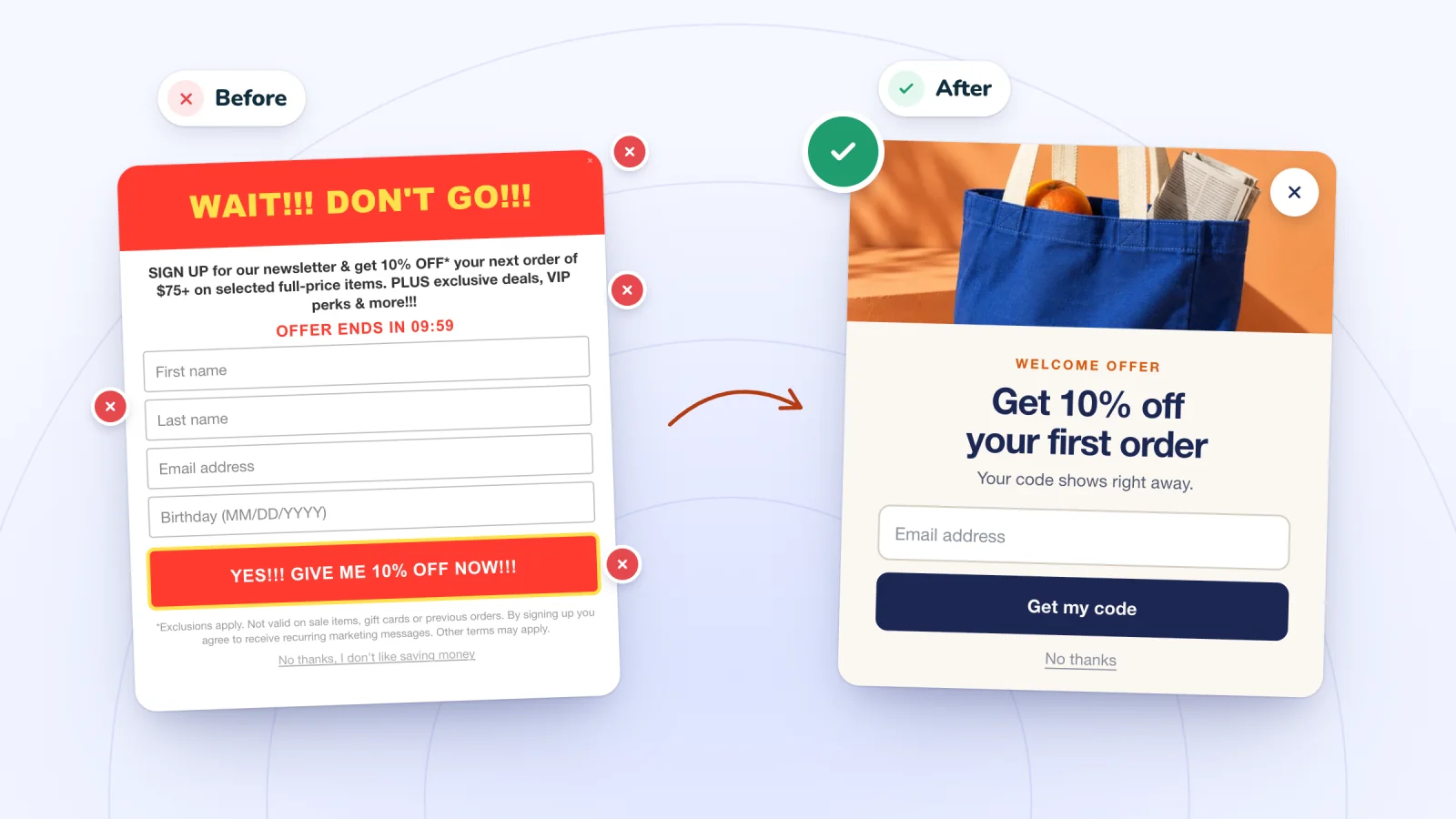
Removing a pop-up because it kept coming back? Spin Wheel's are built to hold back: each shows once per browsing session by default, only one opens per page, and they stop asking anyone who has signed up in that browser. See Spin Wheel's spin-to-win pop-up, with your store's own coupons as prizes.

Sources
- Wix Editor: Managing Your Popups
- Wix Editor: Adding and Setting up a Popup
- Studio Editor: Using Popups
- Wix Harmony Editor: Adding and Customizing Popups
- Wix Editor: Showing and Customizing Popups on Your Mobile Site
- Wix Editor: Adding and Managing a Welcome Screen on Your Mobile Site
- Wix Editor: Creating a Full Screen Popup Menu
- Wix Editor: Deleting Something From Your Site
- Wix Editor: Publishing Your Site
- Studio Editor: Saving, Previewing and Publishing Your Site
- Clearing Your Browser's Cache
- Wix Apps: Deleting Apps from Your Site
- Adding an App to Your Site
- Wix Stores: Customizing Your Product Page
- Customizing the Side Cart
- Managing Your Coupons
- Wix Stores: Customizing the Quick View in the Product Gallery
- Wix Chat: Deleting Wix Chat
- Wix Chat Request: Removing or Hiding Chat from Your Mobile Site
- Wix Smart Chat: Deleting the Chat from Your Site
- Wix AI Site Chat: Deleting the Chat from Your Site
- Removing the Wix Banner Ad and Favicon
- Wix App: Managing the Invite Banner of the Mobile Web Version of Your Site
- Displaying a Usercentrics for Wix Cookie Banner
- Wix Editor: Embedding Custom Code on Your Site
- Velo Tutorial: Creating a One-Time Popup

We build marketing apps for online stores: myuser.ai writes and sends emails and texts from a store's own products, and we make Spin Wheel and Session Recordings, free apps for online stores. Product details in our guides are checked against the apps themselves.