On this page
- Quick checklist
- Is the automation active?
- Did the automation trigger?
- Why doesn't Form submitted fire for pop-up sign-ups?
- Who is the email sent to?
- Has your monthly email quota run out?
- Will Wix email this contact?
- Is the email in spam?
- Testing it? Use a new address, logged out
- Building it in Wix Studio?
- Coupon email not sending?
- Signed up through Spin Wheel?
- Frequently asked questions
- Try it on your store
- Sources
A Wix automation that won't send its welcome email is usually inactive, was never triggered by that sign-up, has no recipient, has used up the month's email quota, or is writing to a contact Wix won't email, such as one who unsubscribed or bounced. Wix's troubleshooting article splits the checks in two: either the automation never ran, or it ran and the email didn't arrive. Coupon emails fail the same ways, plus one more: the coupon behind them.
Key takeaways
- Check the automation is active first: Save keeps a new one as a draft, and Wix collects no trigger data while an automation is off, so those sign-ups never get the email.
- An automation's summary shows how often it triggered. No new trigger means a trigger problem; a new one means the email stalled at the recipients, the quota, the contact or spam.
- Wix's free email marketing plan sends 200 emails a month, and once they're used, custom automations stop sending until the balance resets.
- Form submitted fires when someone submits a Wix form, so sign-ups that a pop-up app adds directly, as Spin Wheel does, need another trigger, tested with a fresh address.
- To keep welcome emails out of spam, authenticate your domain under Manage Senders, use a reply-to address on that domain rather than Gmail, and ask new subscribers to add your address to their contacts.
- Test logged out, with an address you haven't used before, since Trigger once per person counts every earlier test.
Quick checklist
- Is the automation active? Save keeps a new one as a draft.
- Did it trigger? Its summary shows when it last ran.
- Does the trigger fit the sign-up? The right form, the right version of Wix Forms, or another trigger for sign-ups from an app.
- Is the person who signed up a recipient?
- Is there email quota left this month?
- Will Wix email this contact? Unsubscribed, bounced and inactive contacts miss out.
- Is it in the spam folder?
- Was the test fair? Logged out, with an address you haven't used before.
Is the automation active?
Check this first, because an inactive automation sends nothing: Wix collects no trigger data while it's off, so anyone who signs up in that time never gets the email, even after you switch it back on. Two things leave an automation off without looking broken:
- Saved, not activated. In the builder, Save keeps an automation as a draft for later. Only Activate turns it on.
- Switched off. A deactivated automation stays in your list with its toggle off, and switching it off also cancelled any emails that were waiting on a delay.
A step marked Skip also stays in the flow without running, so check that the email step isn't skipped.
Fix: Go to Automations in your dashboard, scroll to Your automations and click Filter to show inactive automations. Hover over yours, click the More Actions icon, then Edit, and click Activate at the top right. For the people who signed up while it was off, Wix's workaround is to add them to the email automation as recipients by hand.
Did the automation trigger?
Look at its summary before you change anything: if the trigger count didn't rise when you signed up, the trigger is the problem; if it did, the email stalled somewhere after it. Go to Automations, scroll to Your automations and click the automation to see the last trigger date and the total times triggered. For the status of each run, hover over it, click More Actions, then View run log.
If it never triggered, check these:
- The trigger's filter. Some triggers take a filter, such as a specific form on Form submitted, and a sign-up that doesn't pass it never starts the automation.
- The Wix Forms version. Wix Forms has two Form submitted triggers: the blue icon is for new Wix Forms and the red one for old Wix Forms. A trigger set for the other version never fires.
- A recent edit. Wix says editing an automation can reset its trigger and actions, so check both after every change.
- Trigger once per person. With this on, the automation runs once per contact, so anyone it already ran for is skipped.
If it did trigger, a Delay step may still be holding the email back. Wix notes that changing a delay resets the actions already pending for that automation.
Fix: Hover over the automation, click More Actions, then Edit, and click the trigger to check its settings and filters. Click Save when you're done.
Why doesn't Form submitted fire for pop-up sign-ups?
Because Form submitted fires when someone submits one of your Wix forms, and a pop-up app that adds sign-ups to your contacts directly, such as Spin Wheel, never submits one. The automation isn't broken. It's waiting for a form that never arrives.
For those sign-ups, try a trigger that starts from the contact instead. Wix lets an automation start when a contact enters a segment, and segments update as contact details change, so a segment of email subscribers takes in new ones. Wix doesn't say how quickly a contact added by an app joins a segment, so test with a fresh address before you rely on it. The guide to what to send after a pop-up sign-up has the steps, four welcome emails ready to paste and a way to send them by hand if the test fails.
If your sign-ups do come through a Wix form, the form needs an email field, set to the email field type, for a Send an email action to work. The steps for welcoming Wix Forms subscribers are in the guide to growing your list.
Who is the email sent to?
To whoever is under Set recipients, so the person who signed up has to be one of them: keep Include trigger contact ticked, the option some Wix pages call Emails from trigger. Three recipient mistakes look like a broken automation:
- No recipient. Wix says an email with no recipients selected, or with a red "missing property" warning on one, has nowhere to go.
- Only you. With Collaborator roles or Site Owner selected instead of the trigger contact, the email comes to you rather than the subscriber.
- A label. Selecting a label sends each email to every contact who has that label.
Fix: Edit the automation, click the Send an email action, click Show additional settings, then Edit in the Recipients section.
Has your monthly email quota run out?
If it has, the welcome email stops until the quota resets: once a site reaches its monthly email limit, Wix stops sending campaigns and custom automations. The free email marketing plan sends 200 emails a month, and every email from a custom automation counts, test runs included.
That allowance goes quickly. A campaign to 150 subscribers plus 60 welcome emails is 150 + 60 = 210 emails, past the free 200.
- Check it. Go to Email Marketing in your dashboard and look under Monthly balance, or click Manage Quotas on the Automations page.
- When it resets. Free plans reset on the 1st of each month at 00:01 UTC, and paid email marketing plans on the day and time you bought them.
- What keeps sending. App automations with a business transactional or business critical email type, such as order confirmations, don't count and keep going.
Fix: Upgrade your email marketing plan or wait for the reset. Anyone who signed up in between may need the welcome sent by hand.
Collect email and SMS sign-ups with consent
Every sign-up is saved to your contacts with the consent the shopper gave. Texts need a separate tick.
Add to site, it's free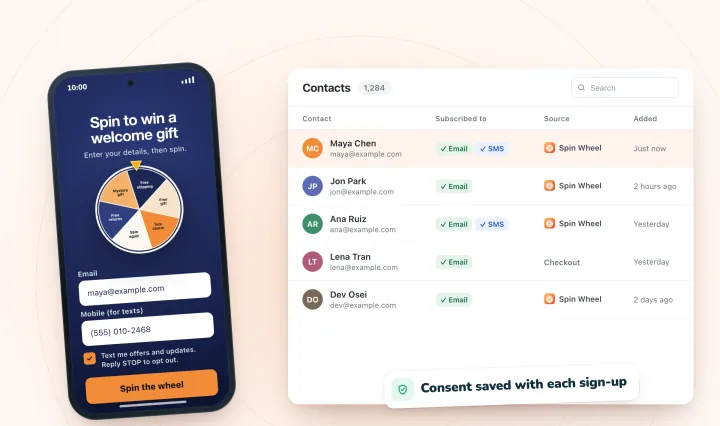
Will Wix email this contact?
Only if the address is valid and the contact can still receive it. Open the contact under Contacts: for a welcome email, the email column should read Subscribed, with no red Bounced warning next to the address.
- Unsubscribed or muted. A promotional email skips anyone who unsubscribed or muted its topic.
- Never subscribed. Wix's troubleshooting FAQ says automated messages can't go to contacts marked Never subscribed, since they haven't opted in to marketing emails.
- Bounced. An address bounces when its inbox is full or its provider rejected an earlier email from Wix.
- Inactive. Wix marks a contact inactive a week after they've received at least 5 campaigns or automated emails without opening or clicking any, and an automated email to an inactive contact doesn't go through.
- Two addresses on one contact. Automated emails usually go to an additional address rather than the contact's main one.
- A typo. An invalid address gets nothing, however well the automation is set up.
Is the email in spam?
Look there next, in the recipient's inbox or your own when you test. If it's there, ask the recipient to add your sender address to their contacts, and tighten the sending side:
- Allow Wix's senders. Wix suggests adding these to the inbox's safe senders, along with your own reply-to address if it's on a custom domain:
no-reply@test.wixshoutout.comand@automations.ascendbywix.com. - Skip the Gmail reply-to. Automated emails sent from a public address such as Gmail or Yahoo tend to land in spam or promotions, and Wix routes them through its own authenticated address instead.
- Authenticate your domain. Emails from an authenticated domain are less likely to be marked as spam, because providers such as Google and Outlook see them as legitimate, Wix says. In Email Marketing, click Manage Senders, confirm your address, then click Authenticate this domain for the records to add at your domain provider. The steps are below.
- Put your business name on it. Wix suggests your business name as the sender's name, so people recognize the email at first glance.
- Ask to be saved as a contact. Wix suggests asking new subscribers to add your "from" address to their address book in the email they get when they sign up, which is your welcome email.
- Write an email, not a flyer. Wix's deliverability tips: a subject line that doesn't read like spam or clickbait, a balance of text and images rather than one large image, and your business name and address in the email.
Authenticate a domain you bought elsewhere
A domain bought from Wix starts authenticating by itself. For one bought elsewhere, such as at GoDaddy:
- Go to Email Marketing in your site's dashboard and click Manage Senders under Sender Details.
- Enter a Sender's name and a Reply-to email on your domain, click Save, then enter the code Wix sends to that address and click Confirm.
- Under Domain status, click Authenticate this domain and keep the list of CNAME records open.
- Copy each record into your domain provider's DNS settings. Some providers want only the first part of the host name, such as
s1._domainkey. - Wait for the records to take effect, usually a few hours and up to 24, then refresh Domain status under Sender Details.
Wix says these records also set up DMARC for your domain. Until it's authenticated, Wix adds an authenticated Wix domain, such as ascendbywix.com, to your emails, and authenticating your own removes that Wix signature.
Testing it? Use a new address, logged out
Most failed tests come from the test, not the automation:
- The address was already used. With Trigger once per person on, the first address you tested with is counted, so the automation won't send to it again. Use a new address each time, or switch the setting off while you test.
- You were logged in. Wix merges the addresses you submit while logged in to your Wix account into your own contact, so the emails don't go where you expect. Test in a private window, logged out.
- You signed up before activating it. Automations don't run retroactively.
- A delay is still running. The builder's Test button skips delays, but test runs send real emails, count against your quotas and don't appear in the run log.
Building it in Wix Studio?
Build a store's welcome email in that site's own dashboard. The Automations tab under CRM & Client Billing in your Wix Studio workspace holds workspace-level automations for your agency's own clients, such as invoice reminders, while Wix sets automations for a client's customers, like thank-you emails for orders, in the client's site dashboard. The checks above apply in both.
Coupon email not sending?
Check the coupon behind it first: Wix says an automation that hands out a coupon stops working once that coupon reaches its end date or its use limit.
- Give the coupon room. Set an end date that covers the whole campaign and leave its total-use limit off. With Unique single-use coupon code, each person's code still works only once.
- Put the code in the email. Add a coupon creates the code but doesn't send it. In the Send an email step, click + Add Personalized Content and add Coupon code.
- Test the code too. If the email arrives but checkout refuses the code, work through why a Wix coupon code isn't working.
For the whole setup, see sending each new subscriber a single-use code, which also covers who such a code can and can't keep out.
Signed up through Spin Wheel?
Then two emails are in play, and only one of them is a Wix automation. Spin Wheel shows every winner the prize code on screen, on a card that copies with a tap, and emails a backup copy to winners who gave an email. That backup comes from Spin Wheel, so nothing in Wix Automations turns it on or off. Your welcome email is the Wix automation.
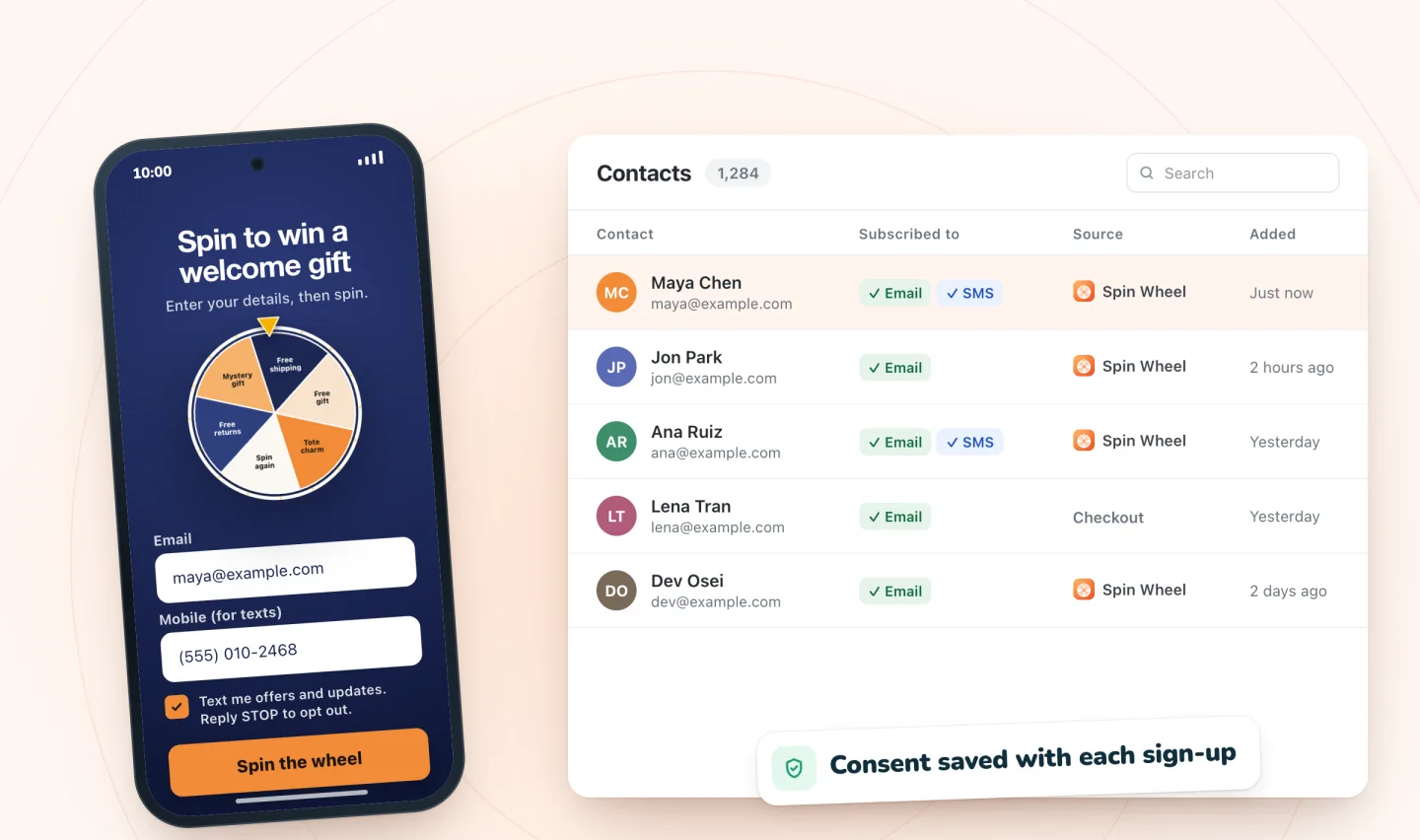
- Phone-only sign-ups get no backup email. It goes only to winners who entered an email address.
- No welcome from Spin Wheel. It sends no welcome, reminders or texts, so the welcome is yours to set up.
- Form submitted never fires for its sign-ups. Spin Wheel adds each one to your contacts directly. Try the segment trigger above, test it with a fresh address, and fall back on sending by hand from Spin Wheel's Sign-ups page, as the after-sign-up guide shows.
- Subscribed unless they opted out before. An email sign-up is saved as subscribed unless that person had unsubscribed from your emails earlier, so check the contact if one person's welcome never arrives.
- Or have it done for you. myuser.ai, from the same team as Spin Wheel, writes welcome emails from your products and sends them to the people who opted in, once you set up email. It syncs with Spin Wheel on its own, so your sign-ups are already there. See how the two work together, or myuser.ai's listing on the Wix App Market.
Frequently asked questions
Why is my Wix automation not sending emails?
Start with its status and summary. If it's inactive or only saved as a draft, activate it. If it never triggered, check the trigger's form or filter. If it triggered, check that the person who signed up is a recipient, that this month's email quota isn't used up, and that the contact is subscribed and hasn't bounced. Then look in the spam folder.
Why are my Wix emails going to spam?
Usually because of one of the three main factors Wix says influence deliverability: how you identify yourself as a sender, your sender reputation or the email's content. Providers treat mail from a domain that isn't authenticated, or from a public address such as Gmail, as more suspect, and spam complaints, often from people who never signed up or don't remember doing so, hurt your reputation. Authenticate your domain under Manage Senders in Email Marketing, use a reply-to address on that domain, email only people who subscribed, remove inactive contacts and keep emails more text than images. A test campaign can land in spam on its own, since Wix sends it from a default testing address rather than your domain.
Do automated emails count toward my Wix email limit?
Yes. Every email a custom automation sends counts toward your monthly email marketing balance, test runs included, and the free plan covers 200 emails a month. Once the balance is used, custom automations stop sending until it resets. App automations with a business transactional or business critical email type don't count and keep sending.
Why did my automation email send once and then stop?
Usually because Trigger once per person is on, so the automation counted the address you tested with and won't send to it again. Test with a new address, or switch the setting off while you test. If it stopped for everyone, check this month's email quota and, for a coupon email, the coupon's end date and use limit.
Can a Wix automation email people who signed up before I set it up?
No. Wix automations only run for triggers that happen while they're active, and an inactive automation collects nothing to catch up on later. Wix's workaround is to add those people to the email automation as recipients by hand, or you can send them the welcome as a one-off campaign.
Try it on your store
Spin Wheel winners don't wait on your automation: the prize code appears on screen when they claim it, and winners who gave an email also get a backup copy. See how the email sign-up pop-up for Wix stores collects the subscribers your welcome email goes to.

Sources
- Wix Automations: Troubleshooting Wix Automations
- Wix Automations: Creating an Automation
- Wix Automations: Managing Your Automations
- Wix Automations: Customizing Automated Emails
- Wix Automations: Automations Don't Run Retroactively
- Wix Automations: Adding and Sending a Coupon
- Wix Forms: Creating Automated Email Responses for Form Submissions
- Wix Contacts: About Segments
- Email Marketing: Understanding Your Monthly Balance
- Email Marketing: Understanding Contacts and Subscribers
- Wix Contacts: Changing a Contact's Subscription Status
- Email Campaigns Marked as Spam
- Email Marketing: Authenticating Your Custom Email Domain
- Email Marketing: Improving the Deliverability of Your Campaign
- Email Marketing: Understanding How Spam Affects Your Campaigns
- Wix Studio: Creating and Managing Your Automations

We build marketing apps for online stores: myuser.ai writes and sends emails and texts from a store's own products, and we make Spin Wheel and Session Recordings for Wix sites. Product details in our guides are checked against the apps themselves.